
The Briefing
Does Lockdown Mode Stop Hackers on iPhone?
Published

Does Lockdown Mode stop hackers on iPhone?
Yes, Lockdown Mode can stop some targeted iPhone attacks. Suppose a stranger sends you an attachment. Normally, your phone may process parts of an incoming message before you decide whether to read it. Lockdown Mode blocks most attachment types and disables link previews, giving spyware fewer ways to reach you. Some media still comes through. If the message persuades you to call a fake bank and read out a verification code, the setting cannot protect your account.
Who should turn it on?
If you have received an Apple threat notification, or your work or public profile makes targeted surveillance a credible concern, I recommend enabling Lockdown Mode across the devices you use. Consider the iPad that stays at home with access to the same messages. For someone whose main concern is a stolen password, a stronger first move is securing their Apple Account, checking trusted devices and turning on two-factor authentication.
How to set up Lockdown Mode across your Apple devices
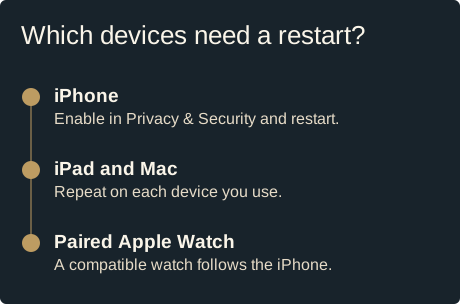
Install the latest supported software on each device. On iPhone and iPad, open Settings, then Privacy & Security, then Lockdown Mode. Choose Turn On Lockdown Mode and confirm Turn On & Restart. On a Mac, start in System Settings and follow the same sequence. After each restart, return to the setting and check that it is on. A compatible paired Apple Watch follows the iPhone automatically. Before travel, check the devices that receive the same messages, including a tablet that stays at home.
Make your iPhone quieter before a sensitive meeting
I set AirDrop to Receiving Off when I am not exchanging files. On iPhone, open Settings, General, then AirDrop. If you have no use for Bluetooth during the meeting, turn it off in Settings under Bluetooth. The Control Center shortcut usually disconnects accessories temporarily. Check first whether you rely on a hearing device, watch or other accessory. Test your setup before you need it.
Choose a channel your family knows how to verify
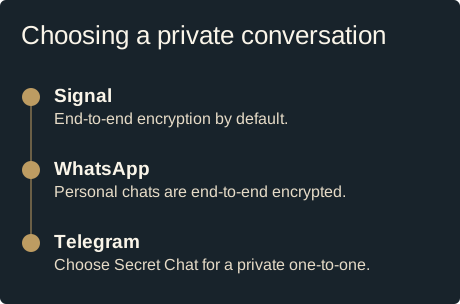
For sensitive conversations, my first choice is Signal. Set it up with your family before travel and verify a close contact’s safety number together. Signal encrypts messages and calls end to end by default. WhatsApp also encrypts personal conversations end to end. On Telegram, that protection requires a one-to-one Secret Chat. Ordinary Telegram chats and groups use a different model. If you choose to disable iMessage, go to Settings, Apps, Messages and switch it off. Agree on the replacement channel first so private conversations do not fall back to SMS.
Decide which apps need your precise location
Open Settings, Privacy & Security, then Location Services. A weather app can often work with an approximate area. A navigation app may need your precise position while you are driving. Give each app the least access that serves its purpose. Choose Never for apps that have no reason to locate you, and check any app set to Always. Separately, open Find My and review the People tab. App permissions and sharing your whereabouts with another person are different decisions.
Should you disable Safari and use Firefox?
Firefox for iOS offers Enhanced Tracking Protection, which can block known trackers as you browse. That is a privacy benefit. A phishing page can still ask for your password in Firefox, and a harmful attachment can arrive through Messages or email. If you want a family device to use one browser, open Settings, Screen Time, Content & Privacy Restrictions, then Allowed Apps & Features and switch off Safari. This hides Safari. It does not make downloads safe or close web views in other apps. Keep both iOS and the browser up to date.
Create a family verification plan
Pick one trusted person and agree on a number you already know. If a message asks for money, an account code or your current location, call that number yourself before acting. Practice once with a harmless request. If Apple warns you of targeted spyware, type account.apple.com into a browser yourself to verify the notice. From a separate trusted device, seek qualified digital-security help before erasing the phone. Lockdown Mode is a protective setting. It cannot tell you whether the phone was already compromised.
How Lockdown Mode reduces the attack surface
Lockdown Mode is an optional Apple security feature that reduces the attack surface available to highly targeted mercenary spyware. Apple limits most message attachment types, some link previews and certain complex web technologies. If you open a site while the mode is enabled, some pages may load differently or lose features. A website exception relaxes those browsing restrictions for that site, so think carefully before adding one.
What happens to Messages, FaceTime and Apple services?
Apple blocks most message attachment types but allows some media, including certain images, audio and video. Some links and previews are unavailable. Incoming FaceTime calls are limited unless you previously called the person within the period Apple specifies. Invitations to some Apple services can be blocked. Ordinary phone calls and plain text messages still work. Shared Albums and some FaceTime features are unavailable. Check the Apple Support guide for device-specific details.
What changes for wired connections and configuration profiles?
An iPhone or iPad generally needs to be unlocked to connect to a computer or wired accessory while Lockdown Mode is on. New configuration profiles cannot be installed, and devices cannot be newly enrolled in mobile device management while the mode is enabled. If your employer manages your phone, talk to the administrator before changing its security settings.
Does enabling Lockdown Mode secure all Apple devices?
Turn it on separately on the other Apple devices you use, including iPad and Mac. Apple documents automatic activation for a paired Apple Watch on compatible watchOS versions. Apple lists support starting with iOS 16, iPadOS 16, macOS Ventura and watchOS 10, with additional protections in newer versions including macOS Sonoma. Update to the latest software supported by each device, then confirm Lockdown Mode is enabled where you intended.
Does the average iPhone user need Lockdown Mode?
For the average user, Apple recommends the mode only when you have reason to think you could face highly sophisticated attacks. Most people can focus first on software updates, unique passwords and strong account security. If your iPhone has already been hacked or you received an Apple threat notification, use a separate trusted device to seek expert help. Turning on Lockdown Mode reduces exposure to some future attacks, but it does not remove existing spyware or recover a stolen Apple Account.
Can I turn Lockdown Mode off later?
Yes. On iPhone, return to Settings, Privacy & Security, then Lockdown Mode. Tap the option to turn it off and restart when asked. If you are considering turning it off just to use one website, review what that site needs and whether a targeted exception is appropriate. If you believe you are facing a targeted attack, ask a trusted specialist before relaxing protections.
Can this security feature stop successful mercenary spyware attacks?
Lockdown Mode can reduce the opportunities attackers have to get code onto a device. It does that by limiting certain apps and the content they process, including complex web technologies used in web browsing. Highly targeted mercenary spyware can exploit software flaws, and protective features can change what a device is willing to process. A small number of people face risks serious enough to justify that trade-off. If you believe you were targeted, preserve the notification and contact a trusted specialist from another device.
Check every device after you turn on Lockdown Mode
After enabling Lockdown Mode, check the setting on each iPhone, iPad and Mac you want to protect. Apple users should note which websites, apps and features they need for daily work before adding exceptions. If you have a paired Apple Watch, check the watch’s software version and confirm the expected behavior. Run through a normal phone call, your account recovery process and the web browsing you rely on before your next trip.